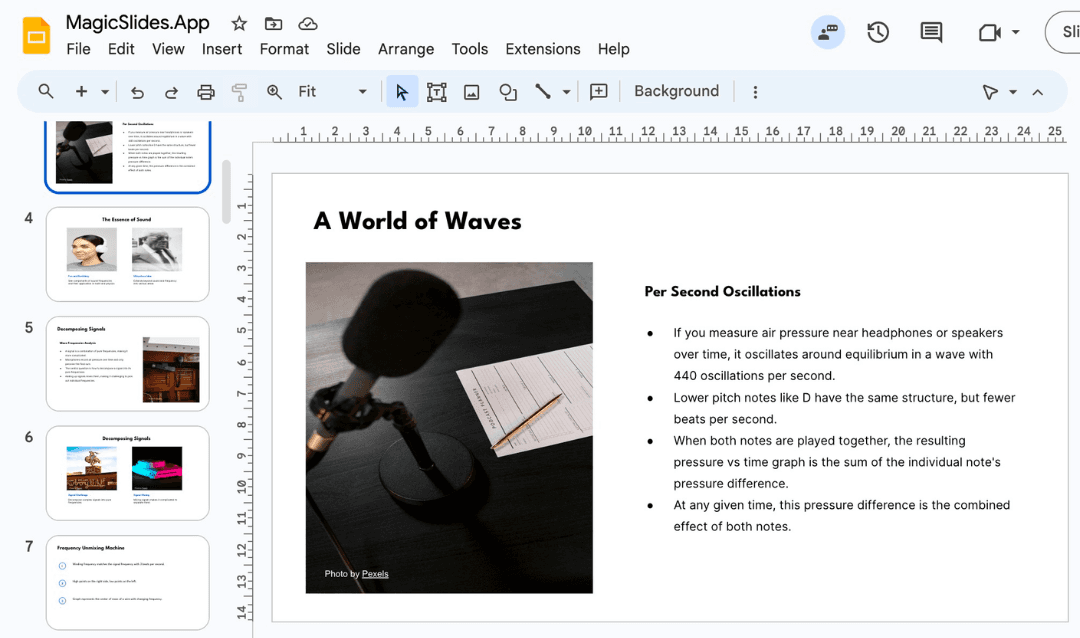
Creating a well-structured sales presentation is crucial for effectively conveying your value proposition to potential clients. While most people default to tools like PowerPoint or Google Slides, Google Sheets can be a powerful and efficient alternative, especially when you need to work with data-driven content. This guide will walk you through how to create a sales presentation template in Google Sheets and also introduce MagicSlides, an AI-powered tool that simplifies the process of creating presentations instantly.
Why Use Google Sheets for Sales Presentations?
Google Sheets provides a structured and dynamic way to present sales data and performance metrics. Unlike traditional slide decks, it allows real-time collaboration, easy data integration, and automated updates. Here are some key benefits:
- Data-Driven Insights: Easily pull live data from Google Analytics, CRM tools, or financial reports.
- Collaboration: Multiple team members can edit and update the document simultaneously.
- Customization: Use conditional formatting, pivot tables, and charts to visualize key sales trends.
- Automation: Use formulas and scripts to keep sales figures updated in real-time.
Step-by-Step Guide: How to Create a Sales Presentation Template in Google Sheets
Step 1: Define the Structure
Before creating your sales presentation template, outline the essential sections you need. A standard sales presentation includes:
- Title Slide: Company name, date, and presentation topic.
- Introduction: A brief overview of your company and its offerings.
- Problem Statement: What problem your product/service solves.
- Solutions & Benefits: How your product/service provides value.
- Key Statistics & Case Studies: Real data to support your claims.
- Pricing & Packages: Breakdown of pricing models.
- Call to Action: Next steps or contact information.
Step 2: Set Up the Template
- Open Google Sheets and create a new spreadsheet.
- Use Sheet 1 as the title page. Merge cells to create a large title area and add your company logo.
- Use Sheet 2 for an Agenda or Overview—list the sections and link to respective sheets.
- Use Subsequent Sheets for Each Slide:
- Add bold headings for each section.
- Use tables for structured information.
- Insert charts and graphs where applicable.
- Format the sheets with consistent font styles, colors, and branding elements to maintain professionalism.
Step 3: Add Visual Elements
- Use Charts & Graphs (Insert > Chart) to represent data visually.
- Apply Conditional Formatting to highlight key metrics.
- Insert images by clicking Insert > Image and selecting from your files or Google Drive.
- Use hyperlinks (Ctrl + K) to link between sheets, making navigation easier.
Step 4: Convert Google Sheets into a Slideshow
Once your presentation template is complete, you can convert it into slides using MagicSlides, an AI-powered tool that generates professional presentations instantly.
Using MagicSlides to Instantly Create a Sales Presentation
Instead of manually designing each slide, MagicSlides lets you generate a polished PowerPoint or Google Slides presentation in seconds. Here’s how you can use it:
Steps to Generate a Sales Presentation Using MagicSlides
- Visit MagicSlides.

- Enter your topic (e.g., "Sales Performance Report Q1 2024").

- Click ‘Generate Instant PPT’.

- Choose your template and specify the number of slides.

- Fill in additional details as prompted (such as data points, branding preferences, or AI-generated insights).

- Click ‘Generate Instant PPT’, and your PowerPoint or Google Slides presentation will be ready for use.
MagicSlides Pricing and Features
MagicSlides offers flexible pricing based on your needs:
.png?table=block&id=1be43bee-0072-80b8-b3fd-cf2fc25af7a7&cache=v2)
MagicSlides is an excellent investment if you frequently create presentations and want to save time while maintaining a high level of quality.
Final Thoughts
Creating a sales presentation template in Google Sheets is a practical way to organize and present sales data efficiently. However, if you need a more visually appealing, AI-generated presentation, MagicSlides can help you generate a professional slideshow in just a few clicks. Whether you're using Google Sheets for structured data analysis or MagicSlides for instant presentation creation, both tools can streamline your sales process and enhance your storytelling.
Need help choosing the right MagicSlides plan? Visit their pricing page and use their calculator to determine the best fit for your needs.
Create PPT using AI
Just Enter Topic, Youtube URL, PDF, or Text to get a beautiful PPT in seconds. Use the bulb for AI suggestions.
character count: 0/ 6000 (we can fetch data from google)
upload pdf, docx, .png
less than 2 min