Tips for SlideShow Presentations – Step-by-Step Guide for a Powerful Impact
Delivering a slideshow presentation that captures attention and leaves a lasting impact takes more than just nice visuals.
Whether you're presenting in the boardroom, classroom, or at an event, a well-prepared slideshow combined with effective delivery can help you convey your message clearly and confidently.
In this blog post, we’ll walk you through essential slideshow presentation tips to help you prepare, present, and impress your audience.
Step-by-Step Tips for SlideShow Presentations
1. Plan Your Storyline First
Before you open PowerPoint or Google Slides, outline your key message and how you want to tell the story.
Every great presentation tells a story. Organize your content into a beginning, middle, and end. Define your objectives, target audience, and the takeaway message. This will keep your slides focused and logical.
2. Keep Slides Clean and Minimal
Use only the essential text and visuals to communicate your point. Avoid clutter.
Too much information on a slide can overwhelm your audience. Stick to one idea per slide. Use bullet points, short phrases, or keywords. Embrace white space to make content more digestible.
3. Use High-Quality Visuals
Incorporate images, charts, infographics, and icons that support your content.
Visuals grab attention and aid in understanding. Make sure every image or graphic is relevant and high-resolution. Avoid pixelated or watermarked visuals that could lower the quality of your presentation.
4. Be Consistent with Design
Stick to a unified theme, color scheme, and font style throughout your presentation.
Consistency keeps the presentation professional. Choose a template or design your own theme. Use the same font sizes, alignments, and color palettes to maintain visual harmony.
5. Practice with SlideShow Mode
Rehearse using the actual slideshow mode to get a feel for transitions and timing.
Practicing in slideshow mode helps you prepare for the real flow of your presentation. You’ll spot awkward transitions or slow animations and can adjust pacing accordingly.
6. Engage with Your Audience
Interact through questions, polls, or direct eye contact to maintain attention.
Don’t just read from your slides. Use them as prompts to speak naturally. Involve your audience by asking questions or encouraging interaction, especially if the session is long.
7. Prepare for Technical Glitches
Keep backups and test your slideshow on the actual presentation device.
Technical issues happen. Have your presentation saved in multiple formats (USB, email, cloud). Test the presentation on the venue’s projector or screen to avoid surprises.
8. Use Presenter Notes Wisely
Prepare speaking notes to guide your narration and avoid reading off the slides.
Presenter notes are great for keeping you on track. Jot down reminders, examples, or cues for transitions so you can focus on connecting with your audience.
9. Control the Pace
Don’t rush through your slides. Pause for effect and check for understanding.
Make eye contact, breathe, and speak slowly. Let your audience absorb each slide before moving on. A well-paced presentation is more impactful and easier to follow.
10. End with a Clear Call to Action
Wrap up with a summary and a clear next step or action for your audience.
Whether it’s a conclusion, recommendation, or contact info, leave your audience with something to remember. Make your final slide impactful and memorable.
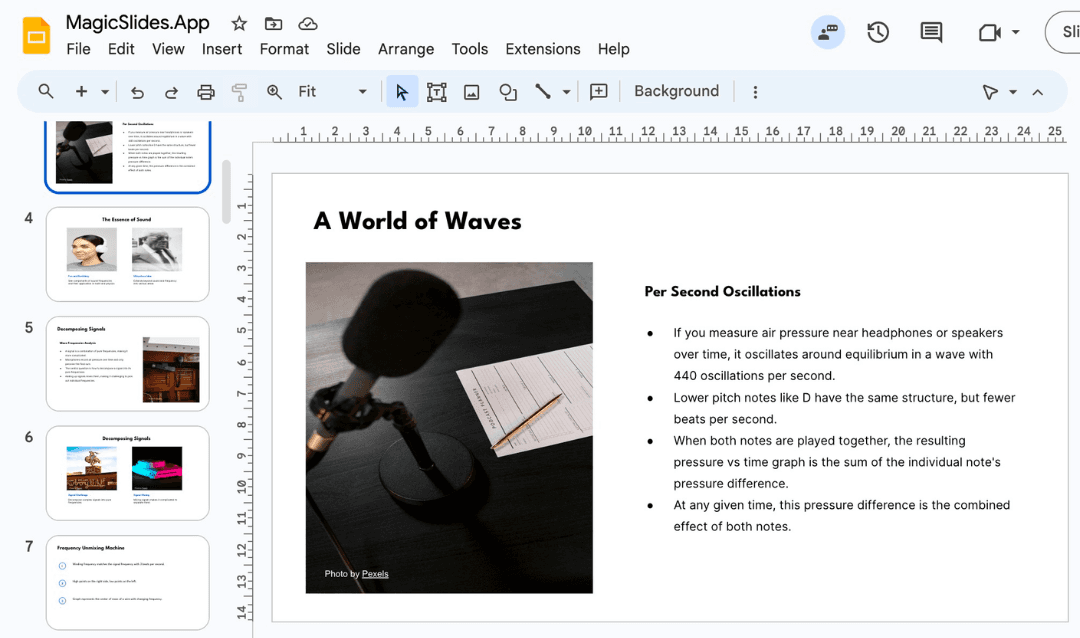
Slide shows are all about clarity and flow. For slides that are both engaging and professional without the effort, try MagicSlides.app AI-generated presentations made in just a few clicks!
Conclusion
A strong slideshow presentation requires a combination of smart design, clear messaging, and confident delivery.
By following these tips, you’ll not only improve the visual appeal of your presentation but also your ability to connect and communicate with your audience.
Great slides support your message they don’t replace it. Practice, prepare, and present with purpose, and you’re sure to leave a strong impression.
FAQs are here to help!
How many slides should a slideshow presentation have?
There’s no fixed number, but a good rule is one slide per minute. Keep it concise.
What is the best font size for slideshow presentations?
Use at least 24 pt for body text and 36+ pt for headings to ensure readability.
Can I add video or audio to my slideshow?
Yes, both PowerPoint and Google Slides allow you to embed video/audio clips to enhance engagement.
Create PPT using AI
Just Enter Topic, Youtube URL, PDF, or Text to get a beautiful PPT in seconds. Use the bulb for AI suggestions.
character count: 0/ 6000 (we can fetch data from google)
upload pdf, docx, .png
less than 2 min