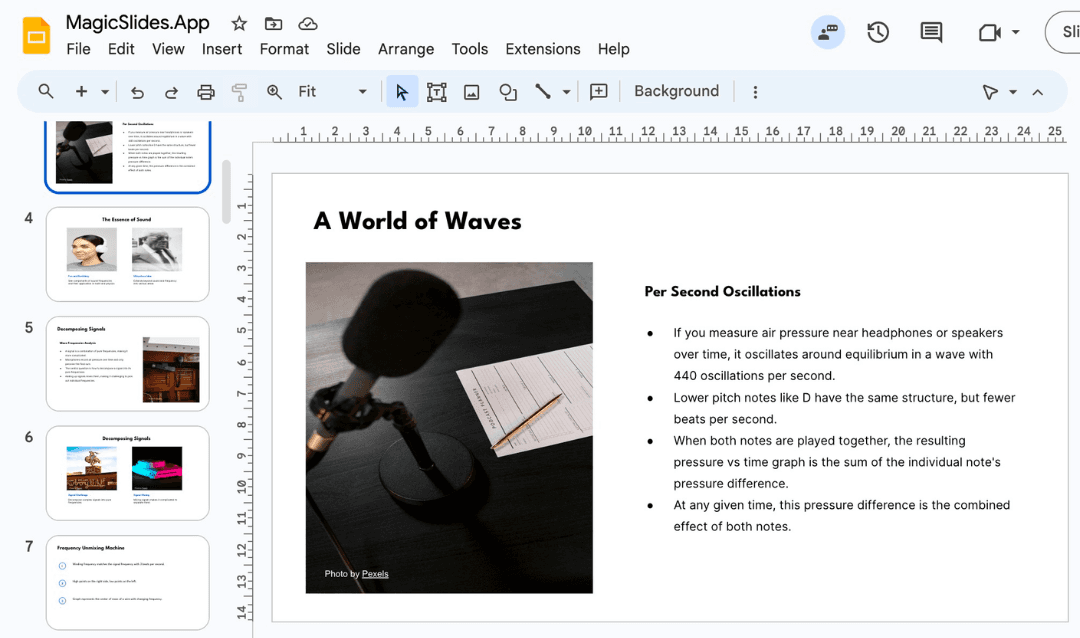
Let’s be real, creating a presentation can be brutal.
You sit down with a vague topic, a blank slide, and the crushing pressure to make something “professional yet engaging.” You open a dozen tabs, copy-paste ideas, fiddle with layouts… and before you know it, half your day’s gone, your coffee’s cold, and you’ve only got four slides done.
I’ve been there more times than I’d like to admit.
But recently, I’ve started doing things differently, and no, I didn’t hire a designer or delegate to an intern. I just let AI lend a hand.
Presentations Don’t Have to Be a Struggle Anymore
There’s something almost magical (pun not intended… okay maybe just a little) about the way AI can take a rough idea and turn it into something slick and shareable in minutes.
What used to take me a couple of hours, outlining, designing, tweaking, I can now get done while finishing my morning tea. And that doesn’t mean sacrificing quality. In fact, things are more polished than ever.
Here’s why that’s a game-changer:
Why I’m All In on AI for Presentations

It Gives Me My Time Back
We’re all juggling too much, meetings, planning, client calls, the works. Spending hours building slides from scratch just doesn’t make sense anymore. AI can build out the bones of a great deck in minutes, leaving me with time to refine and personalize, rather than start from zero.
It Keeps Things Consistent
Fonts align, colors match, and slides actually look like they came from the same brand. I don’t have to stress about style anymore. Even if I’m rushing, it still looks like I took my time (which I absolutely did not).
It’s Smart, Like, Really Smart
Some tools even pull real-time data, summarize trends, and lay them out in clear visuals. I once dropped in a topic about market trends, and the AI gave me graphs, insights, and structure, before I’d even finished typing “Q1 overview.”
It’s Surprisingly Cost-Effective
Hiring a designer or spending hours doing it myself? That’s expensive either way. These tools are affordable and scalable, especially if you’re part of a lean team that needs to move fast.
A Tool That Quietly Works Behind the Scenes
One of the tools I’ve found super helpful lately doesn’t make a big fuss. You pop in your topic, maybe a few extra notes, and it pulls together a full presentation like a digital assistant who never sleeps. Templates, slides, content, all done.
You can even customize it to match your brand, choose your number of slides, or convert from formats like YouTube videos or PDFs. It’s kind of like having a design intern with the research skills of a data analyst. Not bad for something that fits in your browser.
How to Quickly Create a Presentation Using MagicSlides
Alright, so you want to skip the blank-slide stress and let AI do the heavy lifting? Here’s how I (and many others now) use MagicSlides to create a polished presentation in just a few steps.
1. Head Over to the Website
Start by opening MagicSlides.app in your browser. It works smoothly on both desktop and mobile, so wherever you are, you’re good to go.

2. Type in Your Topic

There’s a big field waiting for you. Just type in the topic of your presentation, something like “Digital Marketing Trends 2025” or “Quarterly Sales Recap for Team Alpha.”
The more specific you are, the better the AI understands what you’re aiming for.
3. Click the Magic Button

Hit the “Generate Instant PPT” button. This is where the AI starts piecing everything together, content, structure, design. You’ll feel the productivity kick in immediately.
4. Pick a Template and Choose Slide Count

You’ll now get to choose from a bunch of clean, professional templates. Select the one that fits your vibe or brand best.
Also, pick how many slides you want, whether you need a tight 5-slide deck or a more detailed 15-20 slide presentation.
5. Add Any Extra Notes (Optional but Helpful!)

Got some talking points or specific data you want to include? There’s a space to input extra details. This helps personalize the output and keeps the content aligned with your message.
6. Click “Generate” Again
Once everything’s in place, give it another click to finalize. The AI will spin up your deck in a few seconds, and boom, it’s ready!
7. Download or Customize

Your presentation is now ready for download, or, if you like to tweak a bit (I usually do), you can hop in and adjust the tone, visuals, or add that inside joke slide for the team.
But Wait, It’s Not All Set-and-Forget
Let’s be clear: AI doesn’t replace you.
Your tone, your insights, your personal touch, that’s what makes a presentation truly connect. So while AI gets the structure and visuals right, I always spend a little time editing the language, adding anecdotes, or tweaking the flow. That’s where the magic really happens.
A Few Tips That Help Me Get the Best Out of AI

- Be Specific – The clearer your topic, the better the output. I don’t just say “Marketing trends.” I say, “Top 5 emerging marketing trends for startups in 2025.”
- Review Like a Pro – Don’t skip the human edit. Read it aloud, move things around, make it sound like you.
- Stick to Your Brand – Customize colors and fonts so it feels like you, not some random template.
- Practice Still Matters – A great deck is only half the story. Delivery brings it to life.
Where It’s All Heading
Honestly? We’re just scratching the surface. I wouldn’t be surprised if soon these tools start giving us real-time audience reactions, adapting on the fly, or suggesting speaker notes based on who’s in the room.
It’s exciting, and just a little bit sci-fi.
Final Thoughts: From Pain to PowerPoint (Without the Pain)
If you’ve ever felt overwhelmed by the blank slide problem, I get it. But it doesn’t have to be that way anymore.
Smart presentation tools are here, and they’re quietly revolutionizing the way we work. They don’t steal your creativity, they give it space to breathe by handling the busywork.
So the next time you’re staring at that blinking cursor on Slide 1, maybe let AI take the first crack at it. You might be surprised at how far it gets you.
Create PPT using AI
Just Enter Topic, Youtube URL, PDF, or Text to get a beautiful PPT in seconds. Use the bulb for AI suggestions.
character count: 0/ 6000 (we can fetch data from google)
upload pdf, docx, .png
less than 2 min