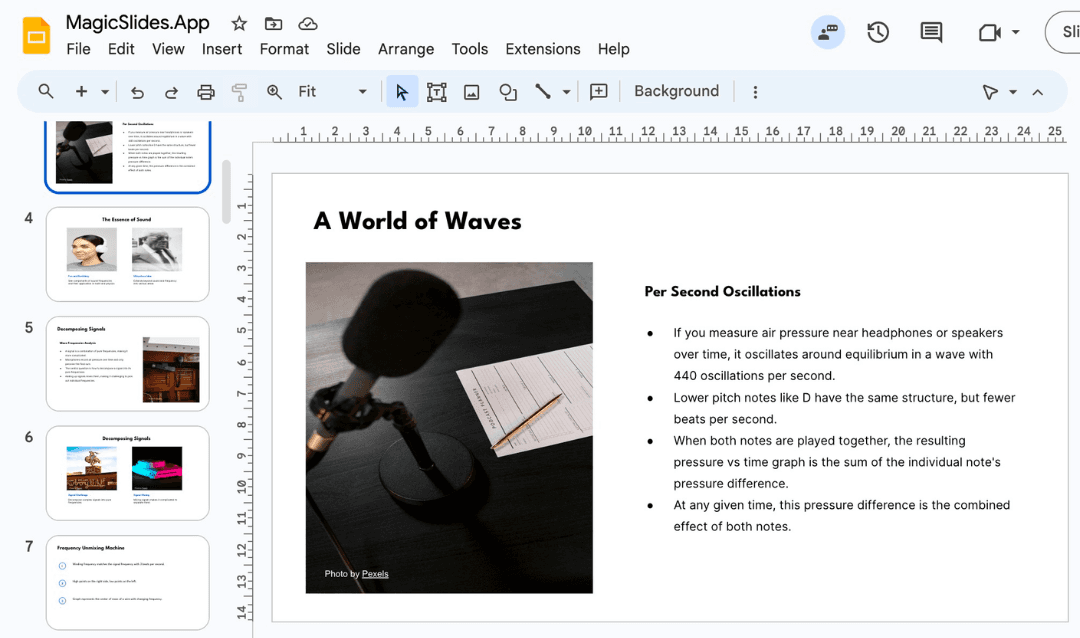
How to Remove Slides from a PDF in Minutes (My Go-To Methods)
When a PDF has too many slides, I prefer to delete the unnecessary ones instead of scrolling endlessly. It reduces the file size and makes it easier to work with and manage. For the same, I’m here to guide on how to remove slides from a PDF via the most preferred solution with an easy set of instructions.
Why Need to Delete Slides from PDF?
Here are the reasons that push me to remove slides from PDF:
- Remove outdated or incorrect information
- Keep the PDF concise and focused
- Tailor the document for a specific audience
- Reduce file size
- Protect sensitive information
- Improve readability and professionalism
- Repurpose content
Whatever your reason, the only goal is to delete slides from PDF simply. Next, I’ll show you multiple ways to do it with simple step-by-step instructions.
How to Remove Slides from a PDF?
When I needed to erase slides from multiple PDFs simultaneously, I researched and found several solutions, which I personally tried. So, you can opt for any of them without any doubt, as all are tested and working, i.e.
#Method 1. Delete Slides from PDF Using Microsoft Edge or Chrome
Most people don’t know this, even I didn’t know this in past, that modern browsers have built-in PDF capabilities for simple tasks. We can use them for erasing slides from PDFs. Here’s how:
- Open the PDF in Microsoft Edge or Google Chrome.
- Press Print (Ctrl + P).
- In the Pages section, choose:
- Page ranges, like 1–5, 7–9, 12
- Select Save as PDF from the printer options.
- Save the new PDF.
After following these steps, one thing is clear that instead of deleting pages, you’re saving a new PDF without the unwanted slides. But this is free and quick; you just need a web browser and the internet.
However, most of the users are using macOS. But do you know how to leverage that for the same? If not, then let me explain next.
#Method 2. How to Remove Slides from a PDF Using Preview (macOS Only)
If you’re using a Mac, Preview is one of the simplest tools. Probably, you used this solution previously. But, below, I’m sharing quick steps to delete slides from PDF, which helps you to achieve the goal easily:
- Open the PDF in Preview.
- Click View > Thumbnails to show sidebar previews.
- Select the slides (pages) to remove.
- Press the Delete key or go to Edit > Delete.
- Save the file.
Why do I like this? This is a free and built-in solution, so there is no chance of data breach or hacking. Additionally, it is perfect for editing presentation PDFs.
#Method 3. Erase Slides Via PowerPoint or Google Slides
Sometimes, the original presentation exists, but you just exported it as a PDF. If that’s the case, then it will be easier to delete slides from PDF in the original file.
- Open the original PowerPoint or Google Slides file.
- Remove unwanted slides.
- Export again as PDF.
If higher quality is your preference, then this is the go-to method for you. But what if you’re using the desktop and want to erase slides? The answer, I’ll provide you further.
#Method 4. PDFsam (Free Desktop Tool)
PDFsam Basic is a free and open-source tool to use for split/merge tasks. For the same:
- Install PDFsam Basic.
- Choose Split or Merge with selection options.
- Select the page ranges you want to keep.
- Save the new PDF.
I found that this is best for large PDFs, as it is completely offline, with no upload limits.
#Method 5. How to Remove Slides from a PDF by Regenerating a Cleaner Deck
Sometimes I don’t even bother manually deleting slides when the presentation is messy. In those cases, I use MagicSlides AI PPT Maker, which helps me regenerate a clean slide deck and then export it again as a PDF.

I personally tried this solution for free, and this approach saves me a lot of time because instead of fixing slides one by one, I can simply recreate the presentation with better structure within 30 seconds. Once the deck is created, I export that as a PDF.
How did I? Here are the working steps of this solution:
- Upload the original PDF or paste the content into the solution.
- After the import, the tool analyzes the document.
- Now, enter the prompt to enhance or regenerate it.
- Once satisfied with the result, export it as a PDF.
So, within four quick steps, you erased slides from numerous PDFs simultaneously. It is highly recommended to try this online solution for free and create a new one, or re-optimise any previous PDF professionally.
Best Practices to Follow When Removing Slides from PDFs→
Even though we know how to remove slides from a PDF with reliable and trusted methods, sometimes there is a chance of losing important information if you’re using manual methods (Methods 1-4). So, to avoid any risk related to this procedure, follow this checklist strictly:
- Always keep a backup.
- Check slide numbers carefully.
- Be cautious with confidential files; only use trusted solutions as I mentioned above.
- Make sure formatting doesn’t break.
Always remember these four points to get the desired results.
Additional resource: Convert PDF to Google Slides
Author’s Verdict→
Removing slides from a PDF is simple once you know the right solution. I personally tried all the discussed solutions to delete slides from PDF, and honestly, I achieved the expected results with them. Moreover, I hope that after this detailed discussion, you got a clear answer on how to remove slides from a PDF and related queries.
If you like this information, then share this with your friends and colleagues to help them also, if they are wondering the way for the same.
People Also Ask→
Q1. Can I remove specific slides from a PDF?
Yes, to do so:
- Open the PDF
- Select only the slides to delete
- Save the updated file.
That’s all! See, this is quite easy and hassle-free.
Q2. Can I delete multiple slides at once from a PDF?
Yes. You can select multiple slides together and remove them in one click instead of deleting each slide individually.
Q3. Is it possible to undo slide deletion in a PDF?
If you haven’t saved the file yet, you can undo the action. Once the PDF is saved, the deleted slides cannot be recovered. So, always ensure you have a backup file.
Create PPT using AI
Just Enter Topic, Youtube URL, PDF, or Text to get a beautiful PPT in seconds. Use the bulb for AI suggestions.
character count: 0/ 6000 (we can fetch data from google)
upload pdf, docx, .png
less than 2 min