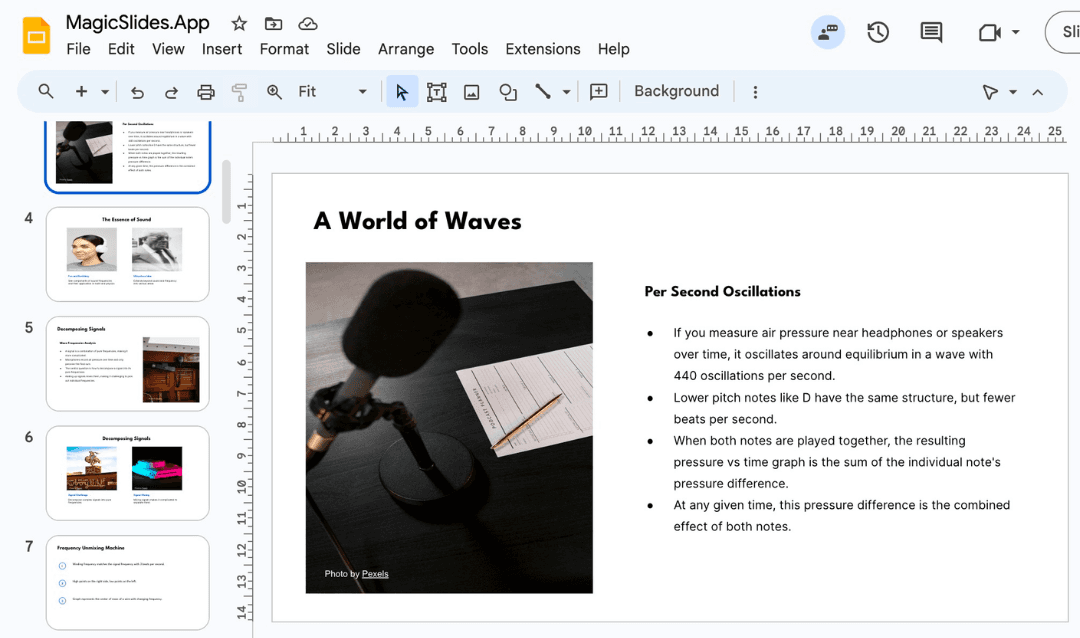
Microsoft PowerPoint and Google Slides are two of the most popular presentation tools available. While PowerPoint offers advanced design features, Google Slides provides cloud-based accessibility and collaboration. If you have a PowerPoint template (PPTX file) and want to use it in Google Slides, this guide will take you through the step-by-step process.
Why Open PowerPoint Templates in Google Slides?
- Cloud Storage & Collaboration: Google Slides allows you to work on presentations online, share them with others, and collaborate in real-time.
- Free to Use: Unlike Microsoft PowerPoint, which may require a paid license, Google Slides is free with a Google account.
- Cross-Platform Access: Open and edit presentations from any device with an internet connection.
- Auto-Save Feature: Google Slides automatically saves your work to Google Drive.
Steps to Open a PowerPoint Template in Google Slides
Method 1: Upload Directly to Google Drive
- Go to Google Drive: Open your web browser and go to Google Drive.
- Upload the PowerPoint File: Click the New button on the left sidebar, select File Upload, and choose your PowerPoint template (PPTX file).
- Open with Google Slides: Once the file is uploaded, right-click on it, hover over Open with, and select Google Slides.
- Edit the Presentation: Your PowerPoint template is now open in Google Slides. You can make changes, add slides, and customize it as needed.
- Save in Google Slides Format (Optional): If you want to convert the file to a Google Slides format, go to File > Save as Google Slides.
Using MagicSlides.app for Instant Presentations
If you want to create an AI-generated PowerPoint presentation instantly, MagicSlides.app is a powerful tool. It allows users to generate professional presentations quickly based on a topic input.
How to Use MagicSlides.app
- Visit MagicSlides.app.
.jpeg?table=block&id=1c043bee-0072-8085-8593-f4a55dc33b08&cache=v2)
- Enter Your Topic: Type the topic of your presentation into the given input field.
.jpeg?table=block&id=1c043bee-0072-80f5-80ea-fe9c4483f07c&cache=v2)
- Click ‘Generate Instant PPT’: Let AI create your PowerPoint presentation.

- Choose Your Template & Number of Slides: Follow the prompts to customize your presentation.

- Click ‘Generate Instant PPT’: Once all details are filled in, let the AI generate your slides.

- Download & Open in Google Slides: You can now open your generated PowerPoint template in Google Slides using the steps above.

MagicSlides App Pricing

MagicSlides offers different pricing plans based on your needs:
Why Use MagicSlides?
- Saves time by generating presentations instantly.
- Offers AI-powered slide creation.
- Supports integration with Google Slides and other tools.
- Affordable pricing for individuals and businesses.
If you're unsure which plan suits you, MagicSlides provides a plan calculator to help you decide based on your needs.
Final Thoughts
Opening a PowerPoint template in Google Slides is simple and offers numerous benefits, including cloud-based access, collaboration, and auto-saving. Whether you manually upload a PowerPoint file or use MagicSlides.app for AI-generated slides, transitioning to Google Slides is a great way to streamline your presentations.
For those looking to automate presentation creation, MagicSlides provides a valuable AI-powered solution at an affordable price.
Start optimizing your presentations today with Google Slides and MagicSlides.app!
Learn how to open up PowerPoint templates in Google Slides with step-by-step instructions. Plus, explore AI-powered MagicSlides for instant presentations
Create PPT using AI
Just Enter Topic, Youtube URL, PDF, or Text to get a beautiful PPT in seconds. Use the bulb for AI suggestions.
character count: 0/ 6000 (we can fetch data from google)
upload pdf, docx, .png
less than 2 min