How to Make a GIF in Canva: Step-by-Step Guide for Beginners
Creating GIFs doesn’t have to be difficult with Canva, as it provides a built-in way for that. You don’t need advanced editing skills since its simple interface makes any images or videos into desired GIFs within minutes.
In this discussion, I’ll share my experiences and my easy methods for how to make a GIF in Canva, step-by-step, so you can create and download your own GIFs without any confusion or external help.
Why Create a GIF in Canva?
If you use Canva to make GIFs, then you will get these benefits:
- It’s beginner-friendly
- No need to install heavy editing software
- Ready-made templates for every purpose
- Supports both images and videos to create an animation
- You can add text, stickers, and animations for better engagement
- Works on any device
- Quick export as GIF with different quality options
- Thousands of free elements to enhance your design
- Perfect for social media sharing, ads, and email marketing
- Saves time with drag-and-drop editing
With all these advantages, Canva becomes a perfect platform for creating professional-looking GIFs quickly. But do you know there are different types of GIFs to create? If not, then first let me explain the same first.
Related article: How to use AI to generate images
Types of GIFs You Can Create in Canva
You can create different types of GIFs depending on your purpose:
- Animated social media posts
- Logo animation
- Text-based promotional GIFs
- Meme GIFs
- Product showcase GIFs
- Slide-based announcement GIFs
Personally, I’m using Canva GIFs for my Instagram promos. Next, I’ll explain to you how I created the GIFs in that.
How to Make a GIF in Canva?
Creating a GIF in Canva is the most straightforward task. To make this task quicker and more efficient, below I’ll provide the complete step-by-step instructions:
- Step 1. Sign in to Canva, or create a new account for free.
- Step 2: Choose a GIF Template or Blank Canvas
- Search “GIF” in the templates section
- Or click Create a Design > Custom Size, e.g., 1080×1080 for Instagram.
- Step 3: Add Elements, Images & Text like:
- Brand colors
- Stickers and icons
- Photos or product shots
- My own custom text
- Step 4: To make the GIF:
- Select any element or text
- Click Animate
- Choose animations like Fade, Pop, Tumble, etc.
- Step 5: Adjust Timing
- Click the Timing/Duration option
- Set total length to 3–6 seconds for best results
- Step 6: Before downloading, click Play to check everything is correct.
- Step 7: Export as GIF
- Click Share
- Select Download
- Choose GIF format
- Pick Transparent background if needed (Pro feature)
- Download the file
Now, your GIF is ready to use. In the next section, I’ll provide you with guidance on where you can use this.
Also read: Convert Canva Presentations to PowerPoint
Where Can You Use Canva GIFs?
Learning how to make a GIF in Canva and creating it successfully is not the final step; you also need to upload it to the right platforms for marketing or other purposes. So, these are some common platforms where you can add it:
- Instagram for product promos and announcements
- WhatsApp for quick message visuals
- Email for CTA enhancements
- Website for blog and tutorial elements
- TikTok / Reels for branding reactions and fun content
Adding a small animated element usually boosts the engagement of your audience.
Want GIFs in Your Presentation?
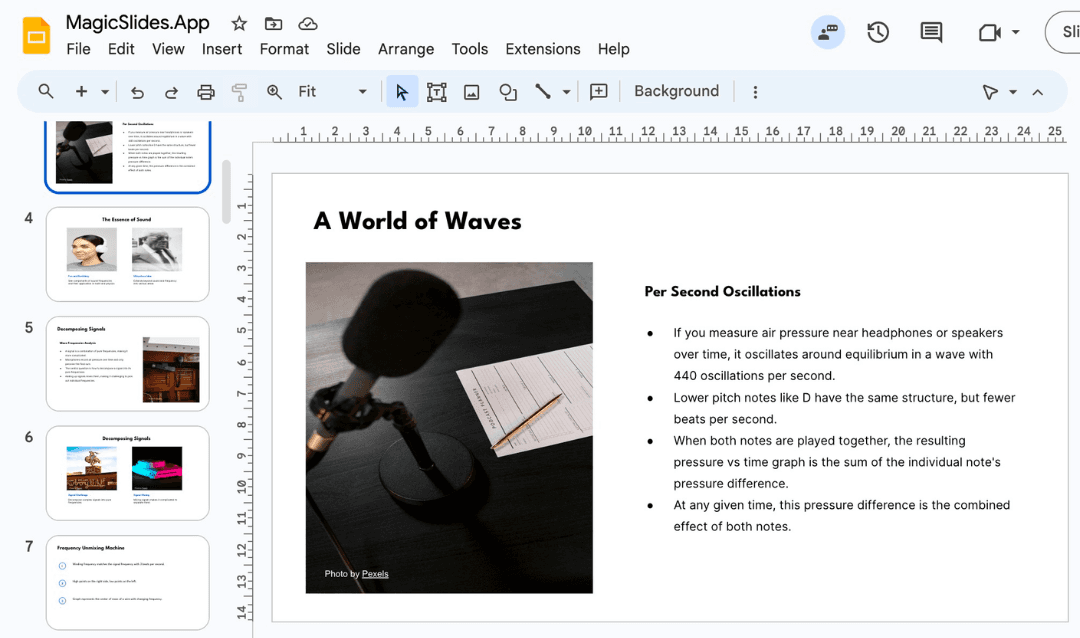
If your goal is not just to create a GIF but also to use it inside a professional presentation, then Magicslides AI PPT Generator is the smarter choice. It allows you to design complete PPTs where your GIFs can be added directly without any formatting issues or manual efforts.
Canva is okay for manually creating GIFs, but with this, you can:
- Create presentations that support GIF animations
- Choose fully customizable templates based on your topic
- Add branding, icons, and visuals automatically
- Export instantly as a .pptx file, Google Slides, or any desired presentation-supported platform
If you want your GIFs to enhance your pitch decks or product demos, it will save you time and deliver a more polished result. So, don’t waste time on manual methods, just try this for free now and get the expected results in seconds.
Best Practices to Follow for Better GIFs
Here is my personal checklist, which I follow to create effective GIFs in Canva:
- Keep file size small to reduce loading speed.
- Use branded colours
- Limit animations > 2–3 animations max
- Add strong CTA text like Buy Now or Learn More
- Avoid too many stickers unless making memes
If the GIF seems heavy, re-export using a lower resolution. Maintain the resolution wisely, as it directly impacts the loading speed and negatively affects user experience.
How to Convert Videos Into GIFs
If you already have a video, upload it to Canva and:
- Trim the section that you want
- Add text or brand elements
- Export as GIF
This is perfect for product demos and quick results.
Author’s Verdict
That’s how to make a GIF in Canva, quickly, easily, and without any professional help. Once you try it a few times, you’ll be able to create engaging GIFs in minutes. Additionally, you can try MagicSlides also if you want more precise and professional results, without any manual intervention.
People Also Ask
Q1. Can I download GIFs in Canva for free?
Yes. GIF export is included in Canva Free.
Q2. Can I add a transparent background?
This feature is available only in Canva Pro.
Q3. Why is my GIF blurry?
Try using a higher resolution or fewer effects.
Q4. Can I animate multiple pages?
Yes, Canva turns each page into a frame of the GIF.
Q5. Can GIFs have sound?
No, GIFs do not support audio. Use MP4 for sound.
Create PPT using AI
Just Enter Topic, Youtube URL, PDF, or Text to get a beautiful PPT in seconds. Use the bulb for AI suggestions.
character count: 0/ 6000 (we can fetch data from google)
upload pdf, docx, .png
less than 2 min