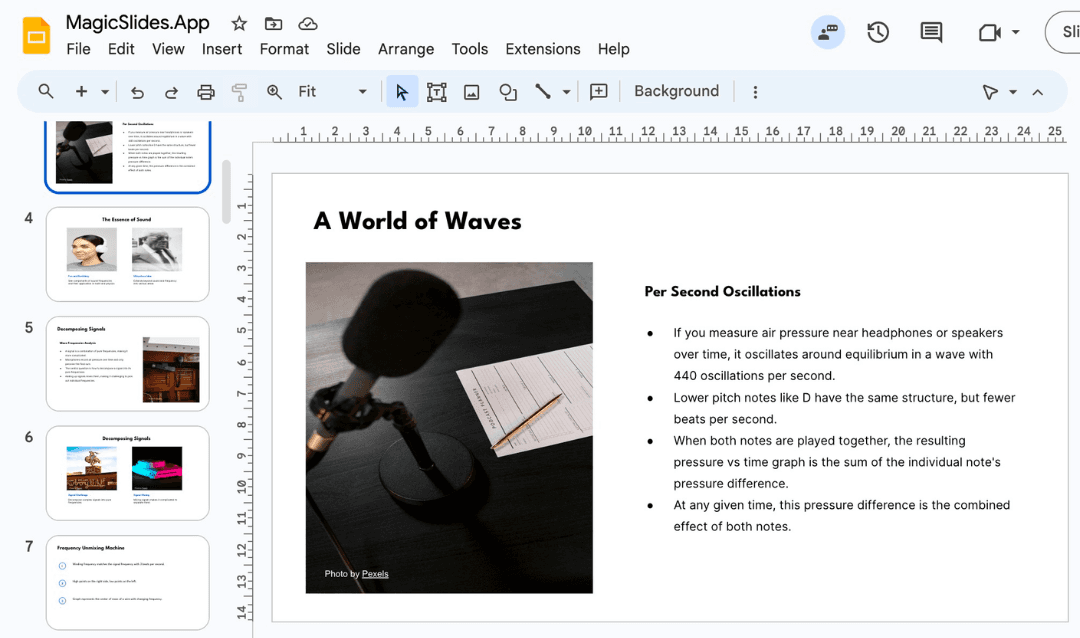
Visual elements are a vital component of engaging presentations. They help convey complex ideas, enhance understanding, and captivate your audience. Google Slides, a popular presentation software, offers a range of features to make your slides more dynamic and informative. One such feature is the ability to insert Google Drawings directly into your slides.
In this guide, we'll walk you through the simple steps to seamlessly integrate Google Drawings into your Google Slides presentations, allowing you to create visually compelling and interactive content.
What is Google Drawing?
Google Drawing is a free tool within Google Workspace that allows you to:
- Create diagrams
- Flowcharts
- Mind maps
- Visual content
The best part? Everything you create is cloud-based, so you can:
- Access it anywhere
- Collaborate in real time
- Integrate it seamlessly with Google Slides or Docs
Next, I’ll explain why users need to import Google Drawings into Slides.
Why Insert Google Drawing into Slides?
There are times when users need to add Google Drawings to slides, but why? Here are the reasons behind this:
- Make custom drawings that look better than the basic shapes in Slides.
- Helps to explain things more clearly.
- Changing the drawing in Google Drive will update Slides automatically.
- Multiple users can edit the same drawing together.
- Keeps slides looking clean and organized.
- Some drawings are easier to make in Google Drawings than in Slides.
- Make presentations look more interesting and easier to understand.
Mainly, users want to collaborate with multiple team members, which is not reliable with Google Drawings. That’s why importing them into Google Slides is always a better option.
Related guide: How to convert PPT to Google Slides
How to Insert Google Drawings into Google Slides in 4 Steps
Step 1: Open Your Google Slides Presentation
- Begin by accessing your Google Slides presentation through Google Drive. Sign in to your Google account if you haven't already, and locate the specific presentation you want to enhance with a Google Drawing.

Step 2: Select the Desired Slide
- In the left sidebar of your presentation, click on the slide where you want to insert the Google Drawing. Make sure this slide is active and selected.
Step 3: Insert Google Drawing
- Navigate to the top menu bar and click on "Insert."
- In the dropdown menu, hover over "Drawing" to reveal a submenu. Here, select "+ New." If not click on image and choose URL and patse your google drawing link there.

Step 4: Create or Choose a Google Drawing
- If you don’t have a drawing yet you create one. Go to Google Drawings. Here, you have two options:
- Create a new drawing from scratch using the drawing tools provided.
- Select an existing Google Drawing from your Google Drive if you've previously created one.
- Once you've made your choice, click "Save and Close" in the Google Drawings tab to insert it into your Google Slides presentation.

#Method 2. Insert Google Drawing into slides
Sometimes, users already have a drawing saved in Google Drive and want to insert it into a slide. If you are also searching for the same, then below is the answer:
- Open your file in Google Drawings.
- Click File > Download.
- Choose PNG, JPEG, or SVG.
- Go back to Google Slides.
- Click Insert > Image > Upload from computer.
- Select your downloaded image.
- Resize or move it anywhere on the slide.
This is the most straightforward and hassle-free solution to directly import Google Drawings into Slides. Additionally, you can opt for a copy-and-paste solution, which I’ll explain next.
#Method 3. Add Google Drawing to Slides Via Copying and Pasting Directly
Use can copy Google Drawings and paste them to the Google Slides directly. Here’s how:
- Open the Google Drawing.
- Select all elements (Ctrl+A / Cmd+A) and copy (Ctrl+C / Cmd+C).
- Go to Google Slides and paste (Ctrl+V / Cmd+V).
The best part is that this method preserves formatting, and you can move or resize the drawing freely. Not only this, but also there is one more quick and free method, which I will share next.
#Method 4. Insert Google Drawing into Slides Using a Link
If you want to keep the drawing editable and auto-updated, then:
- Open the Google Drawing.
- Click File > Publish to the web.
- Choose Embed and copy the generated link.
- In Google Slides, click Insert > Image > By URL.
- Paste the link.
- The drawing will appear as an image on your slide.
When you update the original drawing, Slides will automatically refresh it, or you can reinsert the link.
Leverage an Automated Solution to Complement Google Drawings
In some cases, users want to create an entire presentation quickly in Google Slides but still include diagrams. At that time, they can’t rely on manual methods, as all are time-consuming, and creating an entire presentation from scratch is not possible in urgent cases.
That’s where I recommend opting for a professional solution, i.e., MagicSlides AI PPT Maker. I personally tried this utility, and found that it is most quickest and reliable one, among all online tools.

I tried over 20+ tools, but I found this is best because:
- Generate slide decks automatically from text outlines.
- Add Google Drawings to slides for a custom look.
- Save time and effort on manual formatting and slide creation.
I’m not forcing you to buy this solution, but I suggest just trying this for free, and you’ll clearly understand why I am suggesting this over any other online tool. Moreover, you don’t need to download this, as this is a web-based solution; just signing up is needed.
Combining MagicSlides with Google Drawings allows you to produce high-quality presentations faster than ever.
Best Practices to Insert Google Drawing Into Slides Smoothly
Importing drawings into Google Slides becomes quick and hassle-free with this checklist:
- Keep your drawing small, so it opens fast.
- Use simple shapes to avoid slow loading.
- Save your drawing as a PNG for better quality.
- Give your drawing a clear name so you can find it quickly.
- Keep the size ratio the same when resizing.
- Don’t add too many layers or overlapping items.
- Use colors that match your slide design.
- Make sure light colors are clearly visible.
- Fix or update your drawing before adding it to Slides.
- Check your slide in Present Mode to see how it looks.
- Use a stable internet connection when adding drawings by URL.
- Avoid blurry images; replace them with clear ones.
Additional resource: convert Keynote to Google Slides
Author’s Verdict
Importing Google Drawings into Google Slides is something users always search for to make their data accessible from any device location. Additionally, leveraging Google Slides enhances the collaboration experience.
So, whenever you need a quick shape or simple visual, just insert Google Drawing into slides and continue working. By following the methods discussed above, you can easily add Google Drawing to slides without wasting time and effort. Moreover, to make all the manual tasks, like drawing or making slides, automatic, you can use MagicSlides AI for free.
Quick FAQs
Q1. Can I edit a Google Drawing after inserting it into Slides?
Yes! If you insert your drawing, you can update the original drawing in Drive, and then click “Update” in Slides to reflect changes.
Q2. What format should I download from Google Drawings?
PNG gives the best quality for Slides.
Q3. Can I copy the drawing to other slides?
Yes, simply use Copy > Paste.
Q4. Will the drawing update automatically if I change it in Google Drawings?
Only if you use the published link (Method 4).
Q5. Can I insert multiple drawings in one slide?
Yes, you can add as many as you want.
Create PPT using AI
Just Enter Topic, Youtube URL, PDF, or Text to get a beautiful PPT in seconds. Use the bulb for AI suggestions.
character count: 0/ 6000 (we can fetch data from google)
upload pdf, docx, .png
less than 2 min