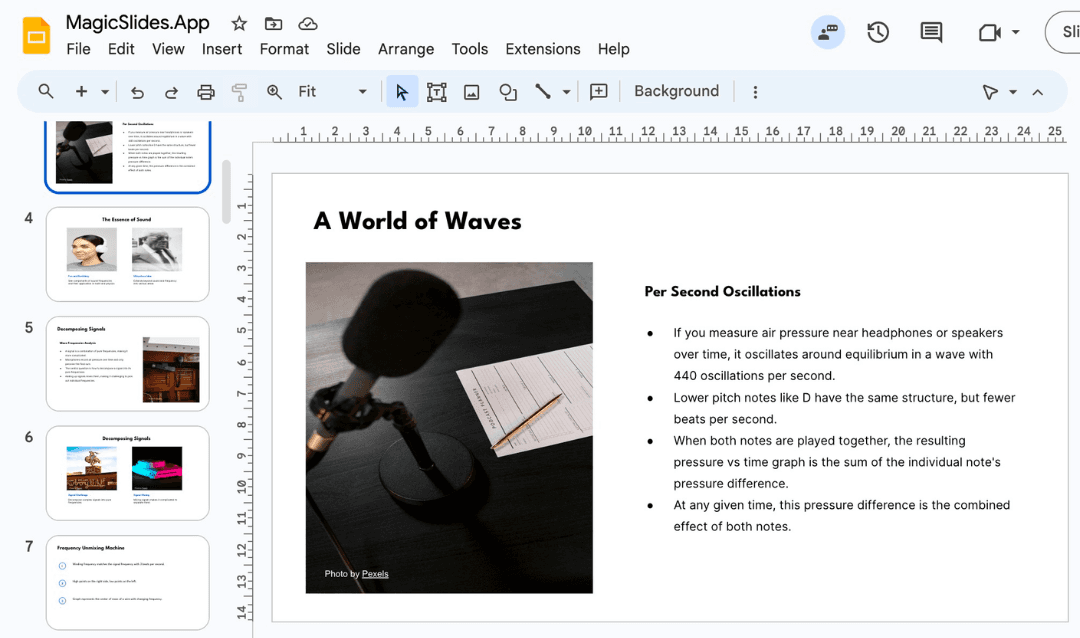
Effective job training is crucial for businesses aiming to enhance employee performance and productivity. One of the most powerful ways to improve training efficiency is by leveraging well-structured and engaging presentations. A well-designed presentation helps employees retain information better, reduces training time, and enhances overall learning experiences. In this guide, we will explore how to improve job training efficiency with better presentations, focusing on best practices, the role of AI in presentation creation, and tools like MagicSlides.
The Role of Presentations in Job Training Efficiency
Presentations play a significant role in job training by:
- Enhancing Understanding: Visual aids simplify complex information, making it easier to grasp.
- Increasing Engagement: Well-structured slides keep learners engaged and interested.
- Reducing Training Time: Condensing key points into digestible slides speeds up the training process.
- Ensuring Consistency: Standardized training materials ensure that all employees receive the same level of instruction.
- Facilitating Remote Learning: Presentations can be shared across digital platforms, making training accessible anytime, anywhere.
Best Practices for Creating Effective Training Presentations
To improve job training efficiency with better presentations, consider the following best practices:
1. Keep It Concise and Clear
Avoid overloading slides with excessive text. Use bullet points, short sentences, and visuals to make content digestible. Stick to key points and use speaker notes for additional details.
2. Use Visuals and Infographics
Images, charts, and infographics help illustrate concepts better than text alone. They also aid in retention and comprehension by providing visual reinforcement of key ideas.
3. Incorporate Interactive Elements
Quizzes, polls, and interactive scenarios can make training sessions more engaging and encourage active participation. Gamification elements such as badges and rewards can also motivate employees.
4. Structure Your Content Logically
Start with an introduction, move to key learning points, and conclude with a summary or call to action. Ensure each slide transitions smoothly to maintain audience engagement.
5. Ensure Readability and Accessibility
Use legible fonts, adequate spacing, and contrasting colors to ensure clarity. Make sure presentations are accessible for all employees, including those with visual or hearing impairments, by incorporating captions and alternative text for images.
6. Practice and Revise
Before presenting, review your slides to ensure they are free from errors and align with your training objectives. Run a trial session with a small group to get feedback and make improvements.
Using AI Tools to Create Better Training Presentations
Creating professional presentations manually can be time-consuming. AI-powered tools like MagicSlides can help streamline the process by generating high-quality presentations instantly. AI ensures that presentations are not only structured efficiently but also visually appealing and content-rich.
How to Create Training Presentations with MagicSlides
MagicSlides is an AI-powered presentation generator that simplifies the process of creating effective training materials. Follow these steps to create professional training presentations:
- Visit magicslides.app.

- Enter your topic in the provided space.

- Click 'Generate Instant PPT' to let AI draft the presentation.

- Choose your template and the desired number of slides as prompted.

- Fill in additional details if necessary.

- Click 'Generate Instant PPT', and your presentation will be created.
Advantages of Using MagicSlides for Job Training
- Saves Time: Generate presentations in minutes instead of hours.
- Ensures Quality: AI helps maintain logical flow and structure.
- Customization Options: Choose from multiple templates and slide counts.
- Integration with Google Slides & Figma: Work seamlessly with your existing workflow.
- Supports Multiple Languages: Helps businesses with global teams.
MagicSlides Pricing and Features
MagicSlides offers three pricing plans to cater to different needs:
.png?table=block&id=1bd43bee-0072-805e-a0b8-d8d57721988d&cache=v2)
MagicSlides also integrates with tools like Google Slides, Figma, and Zapier, making it easy to streamline your workflow. With AI-powered assistance, users can create professional, engaging presentations quickly and efficiently.
Conclusion
Investing in better presentations is key to improving job training efficiency. By following best practices such as using clear visuals, interactive elements, and structured content, you can enhance learning outcomes. AI-powered tools like MagicSlides further simplify the process by providing instant, professional-quality presentations.
If you’re looking to optimize your job training process, consider using MagicSlides to create impactful and engaging presentations in just a few clicks. Try it today and enhance your training efficiency with AI-powered automation.
Create PPT using AI
Just Enter Topic, Youtube URL, PDF, or Text to get a beautiful PPT in seconds. Use the bulb for AI suggestions.
character count: 0/ 6000 (we can fetch data from google)
upload pdf, docx, .png
less than 2 min