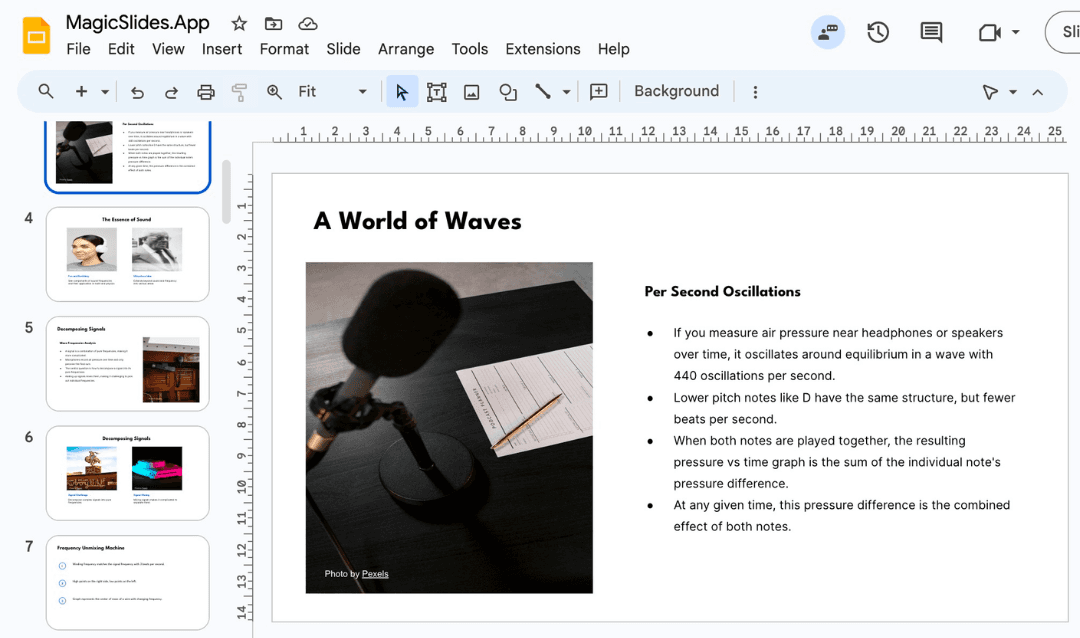
Creating a professional PowerPoint (PPT) template doesn’t have to be a time-consuming process. With the right tools, you can design a sleek, engaging presentation in minutes, ensuring that your slides look polished and visually appealing. In this guide, we’ll walk you through the process of designing a professional PPT template, explore the best AI-powered tools available, and introduce MagicSlides, an efficient alternative for generating instant PowerPoint presentations.
Why Use a Professional PPT Template?
A well-designed PPT template:
- Ensures consistency across all slides
- Enhances readability and engagement
- Saves time in formatting
- Strengthens branding and professionalism
- Makes complex data easier to present
With AI-powered tools, you no longer need advanced design skills or hours of effort to create stunning presentations. Let’s explore how you can quickly create a professional PPT template.
Creating a Professional PPT Template Manually
If you prefer a hands-on approach, follow these steps to create a custom PPT template:
1. Define Your Purpose and Audience
Consider the type of presentation you need. Business proposals, educational slides, marketing pitches, and training modules require different visual styles and structures.
2. Choose the Right Color Scheme
- Stick to two or three complementary colors to maintain a professional look.
- Use brand colors if applicable.
- Ensure text contrasts well with the background for readability.
3. Select Consistent Fonts
- Use no more than two fonts: one for headings and one for body text.
- Popular choices include Arial, Calibri, Roboto, and Montserrat.
- Avoid decorative fonts that may be hard to read.
4. Create a Master Slide
- Open PowerPoint and go to
View>Slide Master.
- Customize the layout, fonts, and colors.
- Save the template by clicking
File>Save As>PowerPoint Template (.potx).
5. Design Slide Layouts
- Add placeholders for titles, subtitles, images, and bullet points.
- Maintain uniform spacing and alignment.
- Create variations like title slides, content slides, and image slides.
6. Use High-Quality Graphics and Icons
- Avoid overloading slides with unnecessary elements.
- Use vector icons from sites like Flaticon or Icons8.
- Ensure images are high-resolution and relevant.
While this manual method allows full customization, it can be time-intensive. Let’s look at AI-powered alternatives to speed up the process.
How to Use MagicSlides to Create a Professional PPT Template in Minutes
MagicSlides is an AI-powered tool designed to generate high-quality PPT presentations instantly. Here’s how you can create a professional presentation using MagicSlides.app:
Steps to Create a PPT with MagicSlides
- Visit MagicSlides.app

- Enter Your Topic in the given space.

- Click ‘Generate Instant PPT’.

- Choose Your Template and Number of Slides as prompted.

- Fill in Additional Details (if required) for customization.

- Click ‘Start Generation’ to finalize your presentation.

Your PowerPoint presentation will be ready in seconds, eliminating the need for manual formatting and structuring.
MagicSlides App Pricing
MagicSlides offers flexible pricing plans to cater to different needs:
.png?table=block&id=1bd43bee-0072-8022-822b-ce6254992a8c&cache=v2)
Plan | Monthly Price (Billed Annually) | Features |
Essential | $6.7/month ($80 annually) | 10 presentations/month, 12,000 character input, up to 10 slides, 5-page PDF conversion, Google data integration |
Pro | $12.4/month ($149 annually) | 50 presentations/month, 12,000 character input, up to 15 slides, 5-page PDF conversion, AI image generation, YouTube video conversion up to 16 min |
Premium | Custom pricing | Unlimited presentations, 100,000 character input, up to 50 slides, 20-page PDF conversion, YouTube video conversion up to 1 hour, AI image integration, AskPPT chat support |
Why Choose MagicSlides?
- Instant slide creation saves time.
- AI-powered customization ensures professional design.
- Seamless integration with Google Slides and PowerPoint.
- Affordable pricing with powerful features.
- Supports multiple languages and AI-driven enhancements.
Final Thoughts
Creating a professional PPT template doesn’t have to be complicated. Whether you choose to design manually or use AI-powered tools like Gamma or MagicSlides, the key is efficiency, clarity, and engagement. With MagicSlides, you can generate high-quality presentations instantly, making it an excellent solution for professionals, students, and businesses.
Ready to create your next stunning presentation in minutes? Try MagicSlides.app today and experience effortless slide generation!
Create PPT using AI
Just Enter Topic, Youtube URL, PDF, or Text to get a beautiful PPT in seconds. Use the bulb for AI suggestions.
character count: 0/ 6000 (we can fetch data from google)
upload pdf, docx, .png
less than 2 min