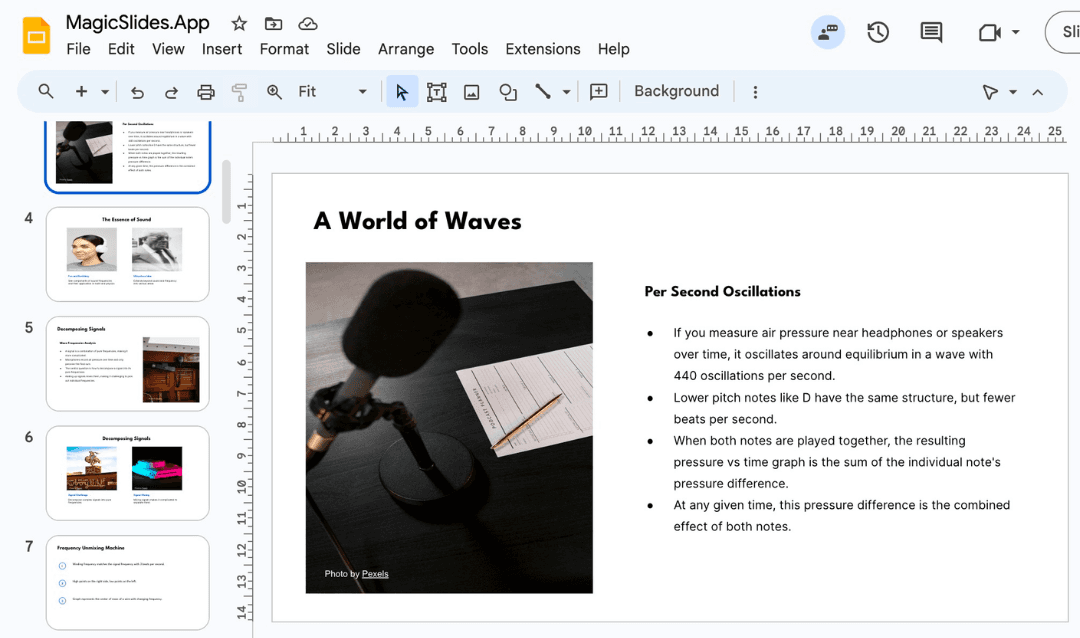
Creating an effective PowerPoint presentation is not just about the content; the design and theme play a crucial role in capturing attention and conveying your message clearly. The right theme can enhance engagement, ensure readability, and make a lasting impression on your audience. In this guide, we will explore how to choose the best PowerPoint themes for impactful presentations and introduce an AI-powered tool, MagicSlides.app, to streamline your slide creation process.
Why Choosing the Right PowerPoint Theme Matters
The theme of your PowerPoint presentation dictates the overall aesthetic and tone of your slides. A well-chosen theme:
- Enhances readability: Clear fonts, proper spacing, and color contrast improve visibility.
- Establishes brand identity: Using brand colors and logos ensures consistency.
- Keeps the audience engaged: Visually appealing slides maintain interest.
- Supports the message: A formal theme suits corporate presentations, while creative themes are better for design-oriented topics.
- Saves time: Pre-designed themes allow you to focus more on content rather than formatting.
- Boosts credibility: A professional design enhances your authority and makes your presentation more persuasive.
Key Factors to Consider When Choosing a PowerPoint Theme
1. Understand Your Audience
Before selecting a theme, consider your audience. A business meeting requires a professional and minimalistic theme, while a product launch may need a vibrant and dynamic design.
Ask yourself:
- Who will be viewing this presentation? (Executives, students, customers, etc.)
- What is the tone of the presentation? (Formal, casual, informative, sales-oriented)
- How much visual engagement does the audience expect?
2. Align with Your Topic
Themes should complement your content. If you're presenting financial data, a clean, structured theme with clear charts and graphs works best. If it’s a creative pitch, opt for a more colorful and artistic theme.
3. Ensure Readability and Contrast
- Use high-contrast colors (e.g., dark text on a light background or vice versa).
- Choose legible fonts (avoid overly decorative styles that may be hard to read).
- Keep font sizes large enough for clear visibility, especially for larger audiences.
- Use bullet points to break down information effectively.
4. Prioritize Simplicity
Avoid overly complex designs that may distract from your message. A clutter-free theme with ample white space enhances clarity and maintains audience focus.
Best practices include:
- Limiting the number of fonts (stick to 2-3 consistent styles).
- Avoiding excessive animations or transitions that might be distracting.
- Keeping slide elements aligned and structured for easy navigation.
5. Consistent Color Scheme
Stick to a limited color palette. Most PowerPoint themes offer preset color schemes that help maintain uniformity. If you are using your brand colors, ensure that the shades used are consistent throughout the presentation.
A good rule of thumb:
- Primary color: Used for titles and key highlights.
- Secondary color: Used for supporting elements.
- Background color: Should be neutral to ensure readability.
6. Use High-Quality Visuals
Ensure that your theme allows for high-resolution images and graphics without compromising clarity. Images should be relevant, high-quality, and placed strategically to enhance the message rather than distract from it.
Use:
- Icons and illustrations to make slides more engaging.
- Charts and infographics for presenting complex data.
- Minimal text overlays on images to avoid clutter.
7. Choose a Responsive Theme
If your presentation will be viewed on different devices (laptops, projectors, mobile screens), opt for a responsive theme that adjusts well to various screen sizes. Test your presentation on different screens before presenting.
How to Quickly Generate a PowerPoint with MagicSlides.app
Creating a well-structured PowerPoint manually can be time-consuming. MagicSlides.app simplifies this process using AI-powered technology. It generates complete presentations with relevant content, structured slides, and professional design in seconds.
Steps to Use MagicSlides.app
- Visit MagicSlides.app

- Enter your topic in the provided space

- Click 'Generate Instant PPT' to start the process.

- Choose your template and select the number of slides as prompted.

- Fill in the necessary details, such as content preferences, visual elements, and layout style

- Click 'Generate Instant PPT', and your PowerPoint presentation will be ready to download.
.png?table=block&id=1be43bee-0072-806a-9de0-faab54a1bc6a&cache=v2)
With just a few clicks, you can generate a professionally designed PowerPoint presentation without spending hours on formatting and slide structuring.
MagicSlides App Pricing Plans
MagicSlides offers flexible pricing plans based on your needs:
Plan | Monthly Cost (Billed Annually) | Features |
Essential | $6.7/month ($80 annually) | 10 presentations, 5-page PDF conversion, 12,000 character limit, up to 10 slides per presentation, Google & Wikipedia data included. |
Pro | $12.4/month ($149 annually) | 50 presentations, AI images, up to 15 slides per presentation, video-to-PPT conversion, 100+ language support. |
Premium | Custom Pricing | Unlimited presentations, 100,000 character input, up to 50 slides, video-to-PPT for up to 1-hour videos, advanced AI features. |
Features Across Plans
- YouTube Video Conversion: Convert up to 16-minute videos (Essential & Pro) and up to 1-hour videos (Premium) into presentations.
- AI Image Integration: Available in Pro and Premium plans for better visual content.
- PDF Conversion: Convert up to 5 pages (Essential & Pro) or up to 20 pages (Premium).
- Google & Wikipedia Data Integration: Ensures data accuracy and easy content generation.
- 100+ Languages Support: Available in Pro and Premium plans for multilingual presentations.
- Figma Plugin & Zapier Integration: Included in all plans for easy workflow automation.
Final Thoughts
Choosing the best PowerPoint theme is crucial for delivering impactful presentations. By considering audience preferences, topic relevance, and design principles, you can create visually appealing and effective slides.
If you want to save time and generate professional PowerPoint presentations effortlessly, MagicSlides.app offers a seamless AI-powered solution. Whether you need a simple business deck or an engaging sales pitch, this tool provides high-quality, structured presentations in minutes.
Explore the available plans and see how MagicSlides.app can elevate your presentations today!
Create PPT using AI
Just Enter Topic, Youtube URL, PDF, or Text to get a beautiful PPT in seconds. Use the bulb for AI suggestions.
character count: 0/ 6000 (we can fetch data from google)
upload pdf, docx, .png
less than 2 min