How to Add Notes to PowerPoint - Best Methods Explained (2026 Guide)
Ever opened your slides right before presenting and realised you forgot some important points? That’s exactly why learning how to add notes to PowerPoint is so useful. It lets you keep your slides clean while you can read your key talking points without your audience knowing. Here’s how to add notes to PPT so you can present smoothly without losing your flow or skipping any crucial points.
If you’re still building your deck, you may also want to check how to create a PowerPoint presentation using AI to speed up the process before adding speaker notes.
What Are Notes in PowerPoint?
PowerPoint Notes, also called Speaker Notes, are additional text that appears below each slide. The audience cannot see these notes, but you can view them while presenting. It helps to build confidence, and guarantee to never to forget any point related to the presentation.
You can use notes to:
- Add explanations for bullet points
- Include examples
- Write reminders about what to say
- Add cues for demonstrations
The best thing is that the audience can’t see these notes, which makes the slides look clean and ensures a professional delivery, without skipping any points.
Knowing how to make PPT attractive by pairing notes with strong visuals can also help and easier to follow.
How to Add Notes to PowerPoint (Desktop Version)
Microsoft PowerPoint can be opened on numerous devices, and the steps to add notes to PPT are different on all. Don’t worry, I’ll share a complete set of instructions for all versions of PowerPoint. So, let me start with the desktop version first, as most of the users rely on it to run the PowerPoint:
#Method 1. Add Notes to PPT in Normal View
Use the default editing screen to add speaker notes to each slide as you work on your presentation. This approach allows you to keep your explanations and key points organised in the notes pane below the slide without adding extra text to the slide itself. Here’s how:
- Open the PowerPoint presentation.

- Select the slide to add notes.
- At the bottom of the screen, click the Notes pane.
- Type your notes.
If the Notes pane is not visible, enable it by:
- Clicking View > Notes

Repeat this for each slide that needs notes.
#Method 2. How to Add Notes to PowerPoint Using the Notes Page View
Switch to the Notes Page layout when you need more space to write detailed explanations for a slide. This view shows one slide per page with a large notes section underneath.
- Go to the View tab.
- Click Notes Page.
- PowerPoint shows one slide per page with a large notes section.
- Type detailed notes below the slide.
This approach will help you write structured speaking points, especially when using advanced presentation techniques PPT, for long sessions.
How to Add Speaker Notes in PowerPoint Online (Web Version)
If you’re working in a browser, the process is slightly different. Here’s how to do so:
- Open the presentation in PowerPoint Online.
- Select a slide.
- At the bottom, click Notes.
- Type your notes.
It’s simple, but the desktop version is more powerful for heavy editing.
How to Add Notes to PowerPoint Mobile App?
If you’re handling MS PowerPoint on your smartphone, then:
- Open the PowerPoint app.
- Select the slide.
- Tap the Notes icon.
- Type the notes.
This is useful when you remember something important just before a meeting.
Create a Complete Presentation with Notes Using AI→
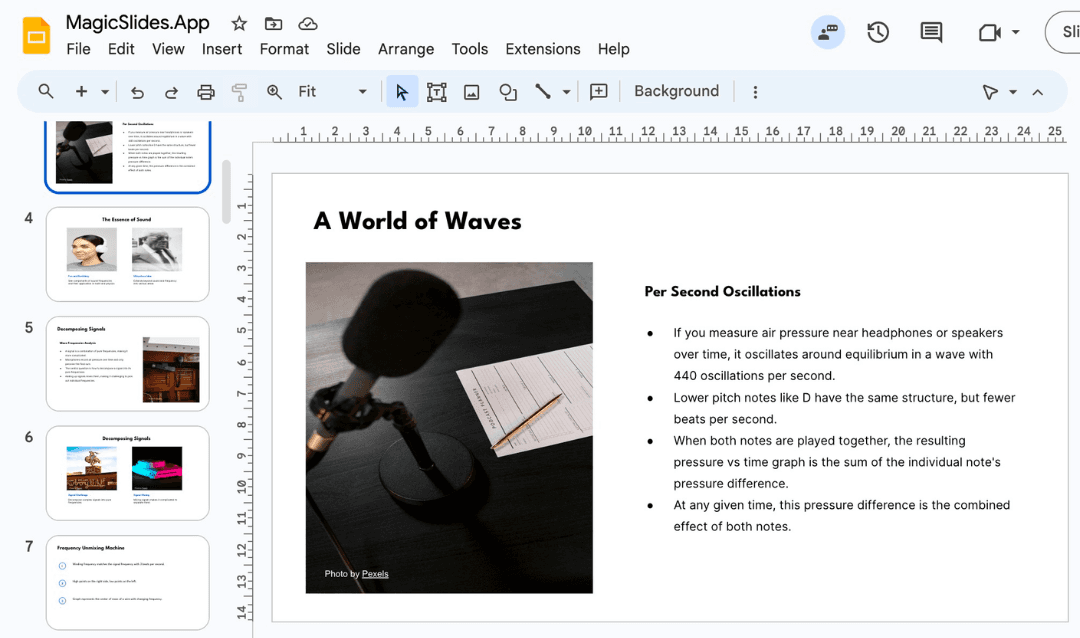
If you don’t want to manually write notes for every slide, I’ve found that using an AI PPT Generator like MagicSlides.app can save a lot of time. Instead of building slides and notes separately, it can generate a complete slide deck along with speaker notes in minutes.

Here’s why I recommend it:
- Automatically creates slides from your topic or document
- Adds structured speaker notes for each slide
- The notes are aligned with the slide content, so you don’t have to think about what to say
- Helps when you’re short on time or preparing last-minute presentations
- Free trial available, with 24/7 technical support
Once the presentation is generated, you can export it directly to Microsoft PowerPoint (PPTX format) and edit anything as desired.
How to Add Notes to PowerPoint via this Solution?→
- Enter your topic or paste your content into MagicSlides.
- The tool generates a full presentation with slides and notes.
- Download the file as a PowerPoint presentation.
- Open it in PowerPoint and customise it if needed.
This approach is especially useful for:
- Business presentations
- Training sessions
- Academic projects
- Client pitches
If your goal is to create a professional presentation quickly without missing important talking points, using this will make the process much easier.
How to View Notes While Presenting?→
Adding notes is only useful if you can see them during the presentation. So, that’s why I’m suggesting the presenter view approach, which allows you to see:
- Current slide
- Next slide preview
- My notes
- Timer
Here’s how to enable it:
- Go to the Slide Show tab.
- Check Use Presenter View.
- Start the slideshow.
After following these steps correctly, you can ensure your audience sees the slides while you see your notes on your screen.
How to Print Slides with Notes→
Sometimes users prefer having a physical copy. So, for the same:
- Click File > Print.
- Under Settings, choose Notes Pages.
- Print.
This gives you a script-like document for reference.
How to Add Notes to PowerPoint Hassle-free - Best Practices to Follow When Writing Notes→
As per my past experiences, I’ve learned that simply adding notes isn’t enough; how to write them matters. For the same:
- Write in short sentences or points
- Include examples and explanations
- Add cues like “Pause here” or “Ask a question”
- Highlight key numbers
- Make sure Presenter View is turned on; otherwise, your notes not be visible during the presentation.
- Whenever starting with a presentation, first go to View > Notes to ensure Notes is enabled.
This checklist will help you to present any topic clearly, without any issues.
When to Use Speaker Notes?→
Adding speaker notes in PowerPoint is especially useful for:
- Technical presentations
- Training sessions
- Client demos
- Academic lectures
- Long presentations
Author’s Verdict→
Adding speaker notes to PowerPoint allows you to deliver confidently without reading from the slides or forgetting key points.
If you want your presentations to feel smooth and professional, I strongly recommend using PowerPoint notes. Once you start using them properly, you’ll never want to present without them again. After this discussion, I hope you have an in-depth insight into how to add notes to PowerPoint.
People Also Ask→
Q1. Can my audience see my notes in PowerPoint?
No, your notes are only visible to you. When you present using Presenter View, the audience sees the slides, while your notes appear only on your screen.
Q2. How do I view my notes while presenting?
Enable Presenter View from the Slide Show tab. This allows you to see your notes.
Q3. Can I print PowerPoint slides with notes?
Yes, you can print slides along with your notes by going to File > Print and selecting the Notes Pages option in the settings.
Q4. Is there a limit to how much I can write in the notes section?
There’s no strict limit, but try to keep notes concise so they’re easy to read while presenting.
Q5. Can I add notes to PPT on mobile devices?
Yes, the PowerPoint mobile app allows you to add and edit notes for each slide.
Q6. Why are my notes not showing during the presentation?
This happens when Presenter View is turned off or when the display settings are incorrect. Always make sure Presenter View is enabled before starting the slideshow.
Create PPT using AI
Just Enter Topic, Youtube URL, PDF, or Text to get a beautiful PPT in seconds. Use the bulb for AI suggestions.
character count: 0/ 6000 (we can fetch data from google)
upload pdf, docx, .png
less than 2 min